Configuring Challenge Scoring
Scoring rules turn qualifying activities into Challenge points. Configure them in the Scoring tab of the web Challenge editor.
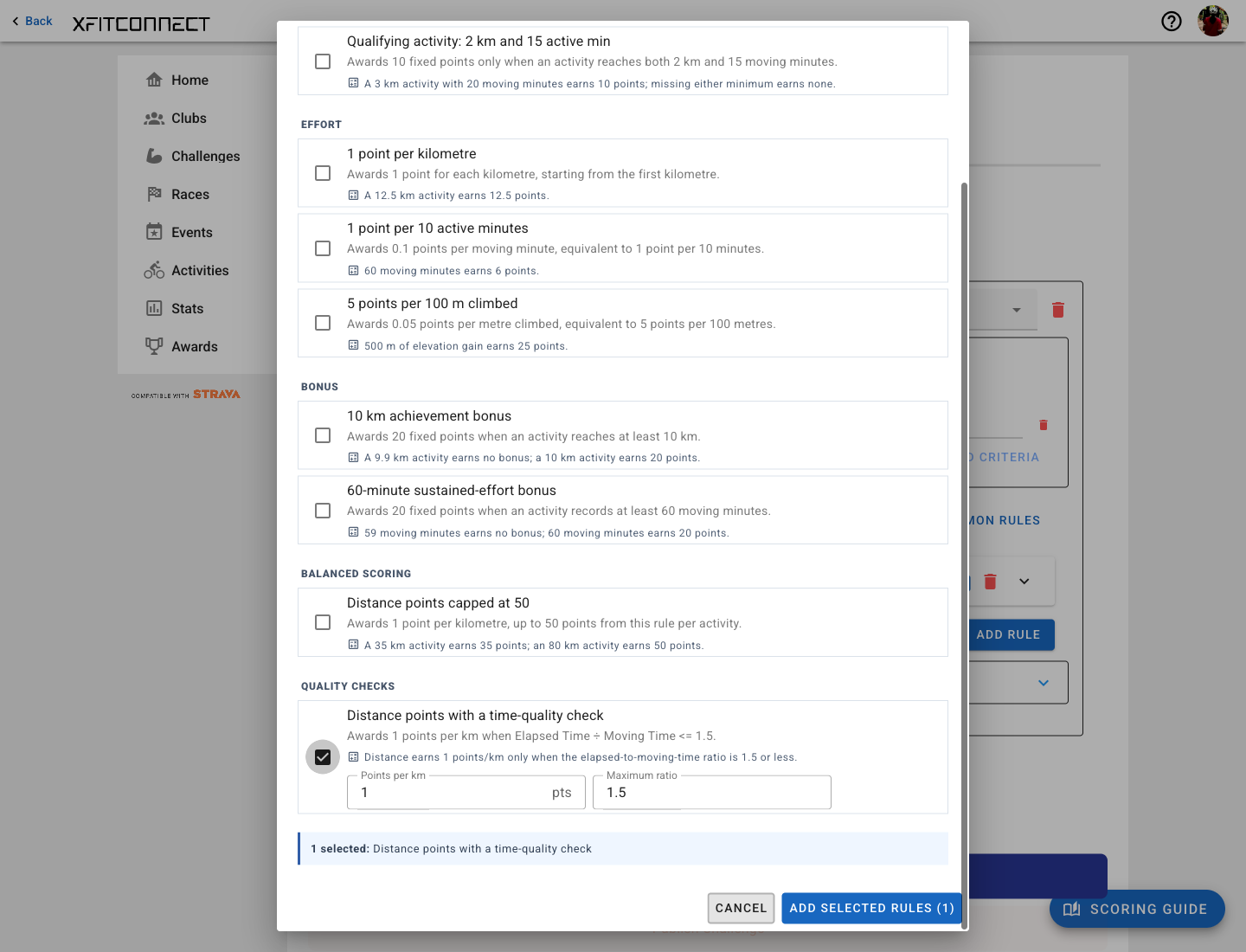
Start With An Outcome
Choose the result you want before editing individual fields:
- Reward participation: use fixed points for every matching activity.
- Reward effort: award points from distance, moving time, or elevation.
- Add a bonus: award fixed points after an activity reaches a threshold.
- Keep results balanced: cap the points one rule can contribute.
- Add a quality check: award a rule’s points only when its metric condition passes.
The Scoring Help panel explains these outcomes and summarizes the current rules in plain language.
Use A Common Rule
- Select
Add Common Rules. - Select one or more rules.
- Adjust the compact fields shown under each selected rule.
- Check the updated explanation and example.
- Select
Add Selected Rules. - Review the resulting rules and save the Challenge.
Quick configuration changes only the selected template. The full rule remains editable after it is added.
Understand The Main Fields
Conditions
Conditions decide whether a rule applies. Multiple conditions can be joined with AND or OR.
- A Value condition compares one metric with a number, such as
Distance >= 10 km. - A Metric condition combines two metrics before comparing the result, such as
Elapsed Time / Moving Time <= 2.
A condition gates only the rule that contains it. It does not automatically reject the activity from other rules.
Fixed Score
Turn on Fixed Score when every matching activity should earn one set amount. For example, a
60-minute activity can earn a fixed 20-point bonus.
Leave it off when points should grow with a metric.
Score Metric, Score After, Weight, And Points
For metric scoring, the rule calculates:
(Score Metric - Score After) × Weight × Points
Example: Distance is 12 km, Score After is 2 km, Weight is 1, and Points is 2. The rule awards 20 points.
Limit
Use Limit when one rule should not contribute more or less than a boundary. A maximum limit of
50 points keeps a long activity from dominating a distance rule.
Quality-Gated Distance Example
The common rule Distance points with a time-quality check awards distance points only when:
Elapsed Time / Moving Time <= configured ratio
With a ratio of 2:
- 60 moving minutes and 90 elapsed minutes passes because the ratio is 1.5.
- 60 moving minutes and 130 elapsed minutes does not pass because the ratio is about 2.17.
If the condition fails, this rule awards no points. Other rules are evaluated independently.
Units
- Distance: km
- Moving Time and Elapsed Time: minutes
- Speed: km/h
- Pace: min/km
- Elevation Gain: m
Schedule A Rule
When Schedule Window is available, use it for time-specific bonuses or restrictions. The first row contains Start Date, End Date, and Days. The second row contains Start Time and End Time. The complete activity must fit inside the configured local schedule.