Creating Goals And Quests
Goals give participants a clear target inside a Challenge. A Goal can represent an achievement, qualification, level, or Quest. A Quest is a repeatable or rankable objective and may award bonus points in addition to normal Challenge scoring.
Before You Start
- Configure the Challenge dates and allowed activity types first.
- Confirm that the scoring rules accept enough activities for the Goal you intend to create.
- Advanced Goals and Quests are available only when enabled for the organizer and an eligible paid or policy-waived Challenge.
- A Super Admin can author advanced Goals when the Super Admin override is enabled.
Add A Goal
- Open the Challenge editor.
- Select the
Goalstab. - Select
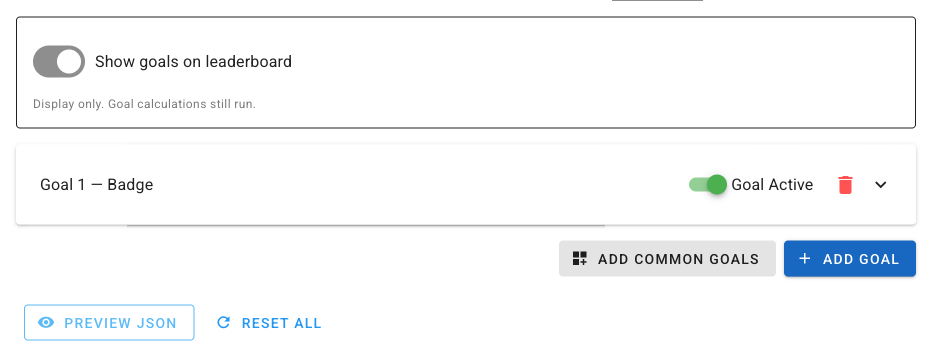
Add Goaland expand the new Goal panel. - Choose its
PurposeandGoal Type. - Give it a participant-facing name and description.
- Complete the fields shown for the selected type.
- Save the Challenge and reopen the Goal to verify it.
Use A Common Goal
- Select
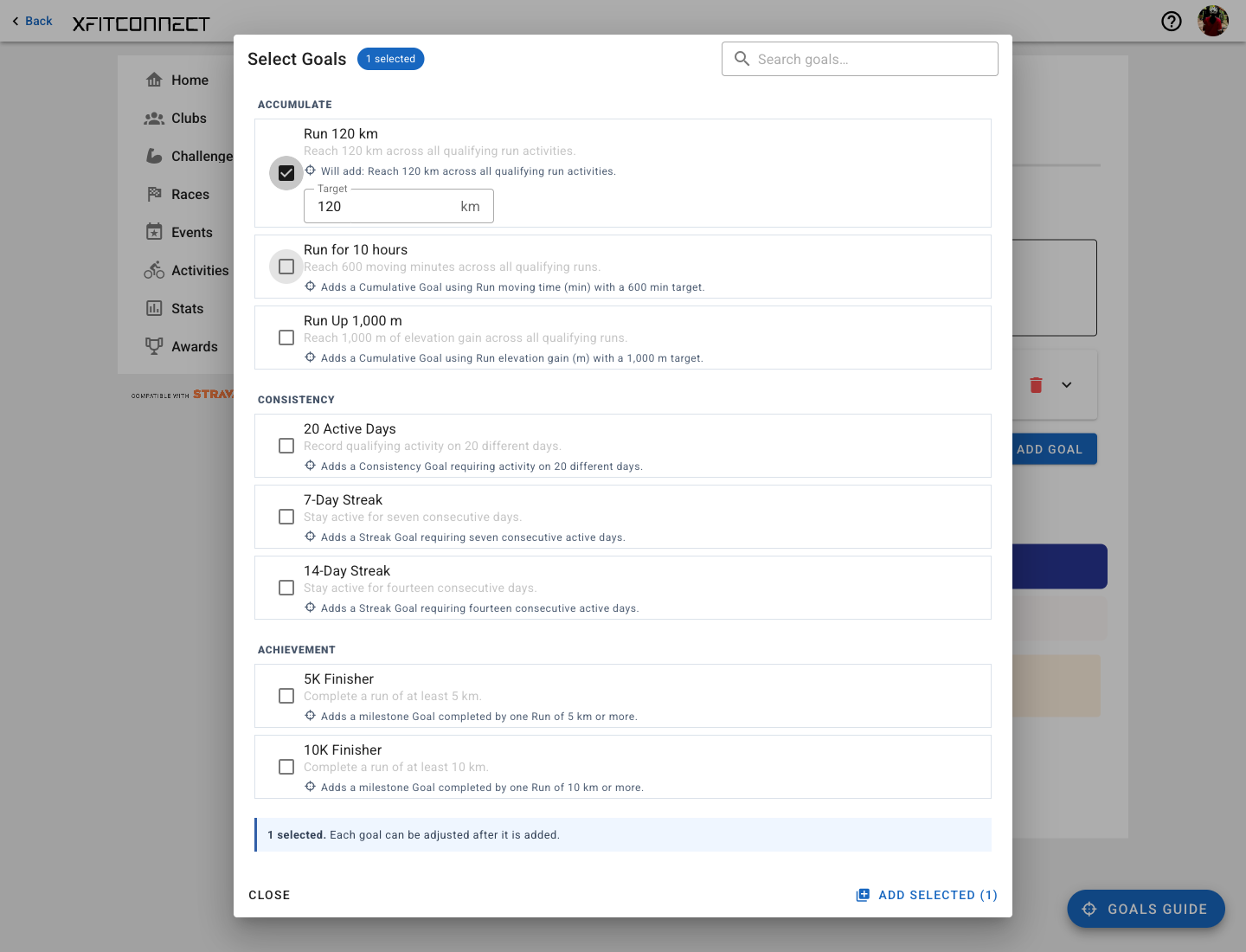
Add Common Goals. - Choose a template that matches the intended outcome.
- For cumulative, consistency, streak, and single-milestone templates, adjust the compact target shown after selection.
- Confirm the updated name and description, then select
Add Selected.
Templates are filtered to the Challenge’s allowed activity types. Advanced Multi-Leg templates also require advanced Quest authoring access.
Common examples include cumulative distance or time, active-day and streak targets, a 5K or 10K milestone, and running elevation. The target remains editable after the Goal is added.
Duathlon And Triathlon Templates
Duathlon Sampleris a regular Variety Goal. Its Run and Ride milestones may be completed as separate qualifying activities; it is not a same-day ordered attempt.Duathlon Questis a Multi-Leg Quest with a 5 km Run followed by a 20 km Ride on the same day.Sprint Triathlon Questis a Multi-Leg Quest with a 750 m Swim, 20 km Ride, and 5 km Run in order on the same day.
Use the sampler for a side challenge. Use a Multi-Leg Quest when sequence, transitions, one attempt, and a fixed completion reward matter.
Create A Multi-Leg Quest
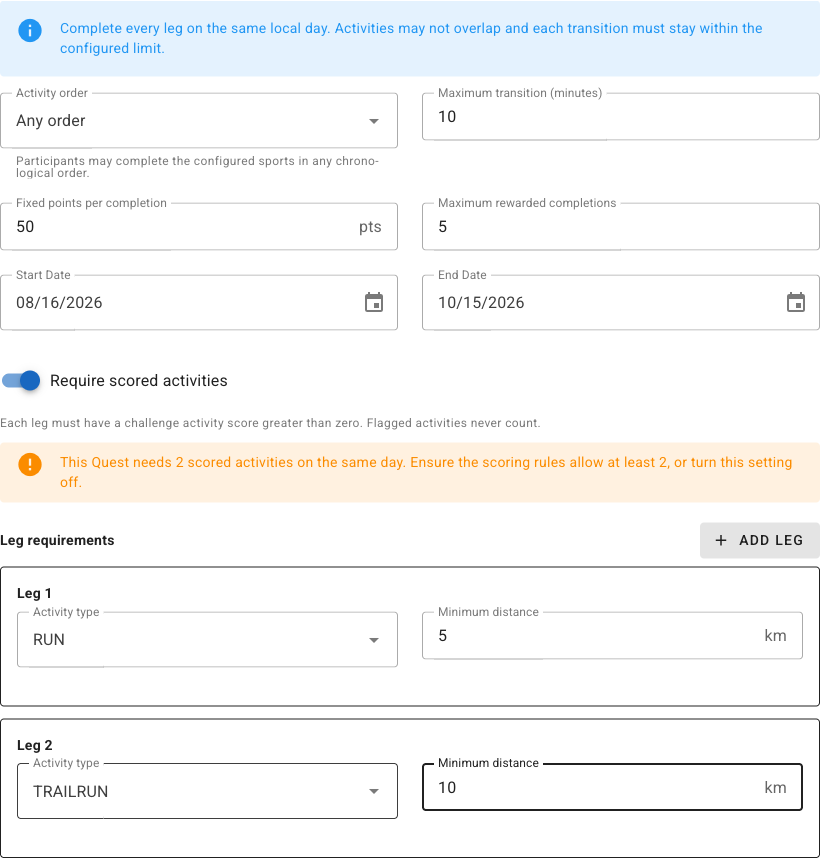
A Multi-Leg Quest is completed by recording two or three qualifying activities on the same local day. For example, a participant might complete a 5 km Run and then a 20 km Ride with no more than 10 minutes between them.
- Set
PurposetoQuest. - Set
Goal TypetoMulti-Leg Quest. - Enter a Goal name and participant-facing description.
- Choose the activity order:
Fixed orderrequires the legs in the order displayed.Any orderaccepts any chronological order of the configured legs.
- Set the maximum transition time. It is measured from the end of one activity to the start of the next.
- Set the fixed points awarded for each valid completion.
- Set the maximum rewarded completions for the Quest duration. A participant can receive at most one rewarded completion per local day.
- Set the Quest start and end dates within the Challenge dates.
- Configure the activity type and minimum distance for each leg. Longer activities qualify but do not increase the fixed Quest bonus.
- Add a third leg only when the Quest requires it.
Eligible Activities
Require scored activities is enabled by default. With this setting enabled, every leg must come from
an activity already added to the Challenge, must have a score greater than zero, and must not be
flagged.
If the Challenge scoring rules select fewer activities than the Quest requires—for example, only the
top activity of the day—the Quest cannot find two scored legs. Either change the scoring threshold to
allow enough activities or deliberately turn off Require scored activities. Turning it off does not
change activity scoring; it only lets the Quest consider otherwise eligible Challenge activities.
Important Qualification Rules
- All legs must occur on the same participant-local day.
- Activities may not overlap.
- Each transition must be within the configured maximum.
- One activity cannot satisfy more than one leg in the same Quest attempt.
- Flagged activities never count.
- A valid completion awards the configured fixed bonus only once.
- Removing or invalidating an activity can remove the related completion and bonus during recalculation.
Troubleshooting
If Quest or Multi-Leg Quest is unavailable, confirm that advanced authoring is enabled and that the
Challenge has an eligible paid or policy-waived hosting package. If participants do not receive credit,
check the Challenge activity list, activity score, flag status, timestamps, distances, Quest dates, and
transition limit.
The normal Challenge score and the Quest bonus are separate. Editing a Quest does not change the score already calculated for an activity.